You’ve been assigned an access review

When an access review campaign includes you as a reviewer, you’ll receive an email with a link to your review tasks in Torch.
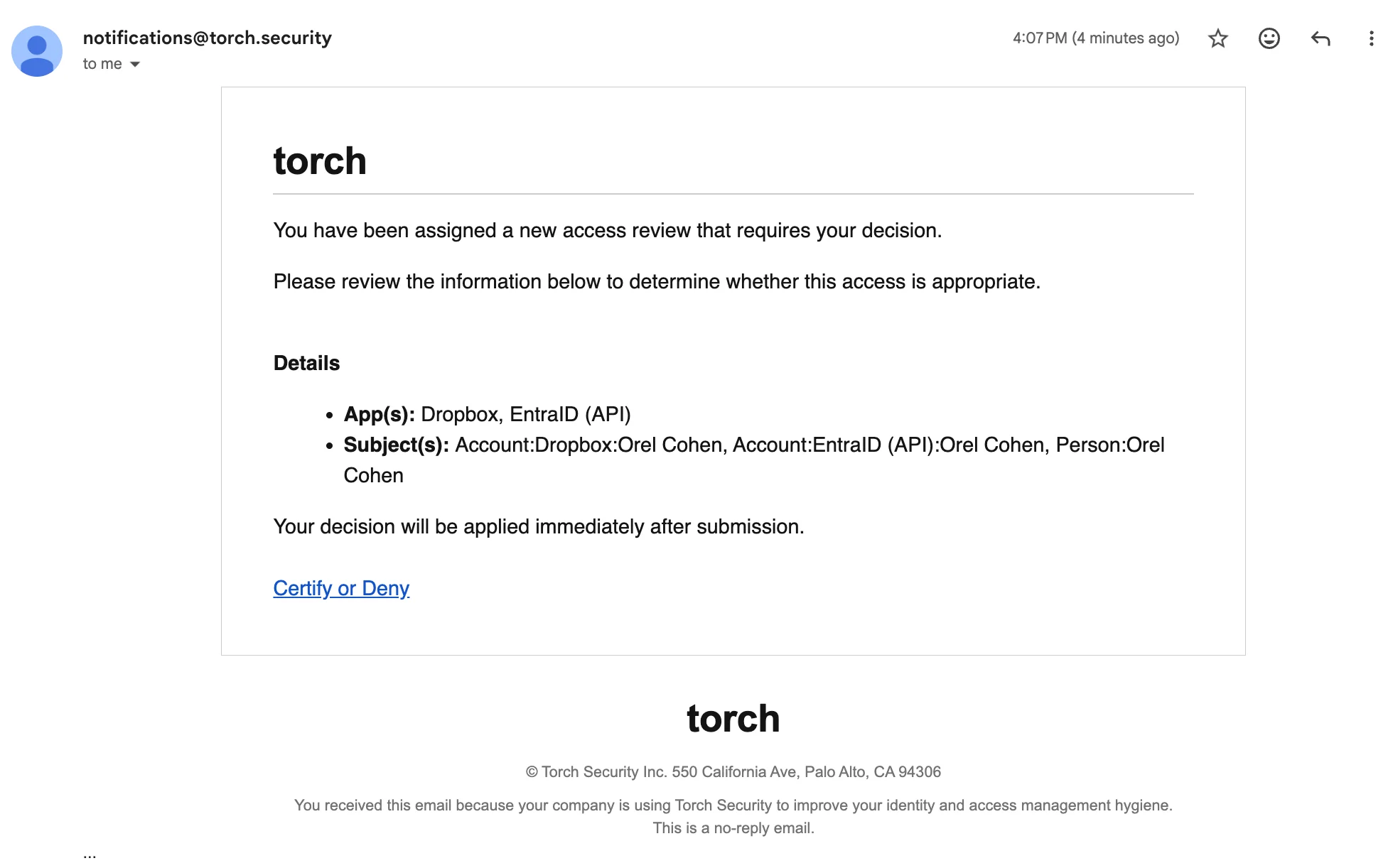
Email inviting to do review
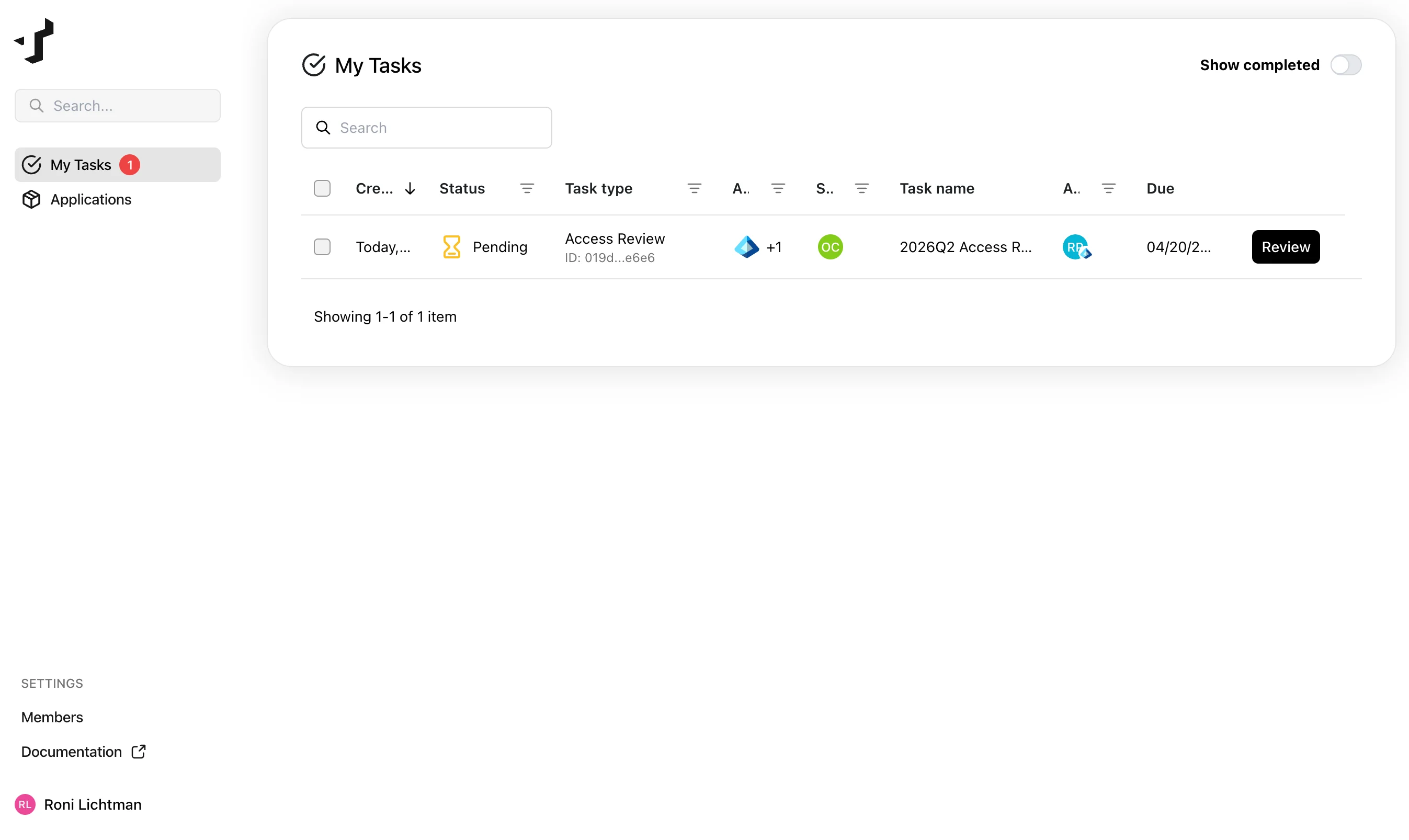
You can also find them in the Tasks page under My Tasks.
Tasks page showing access review tasks

Review each task

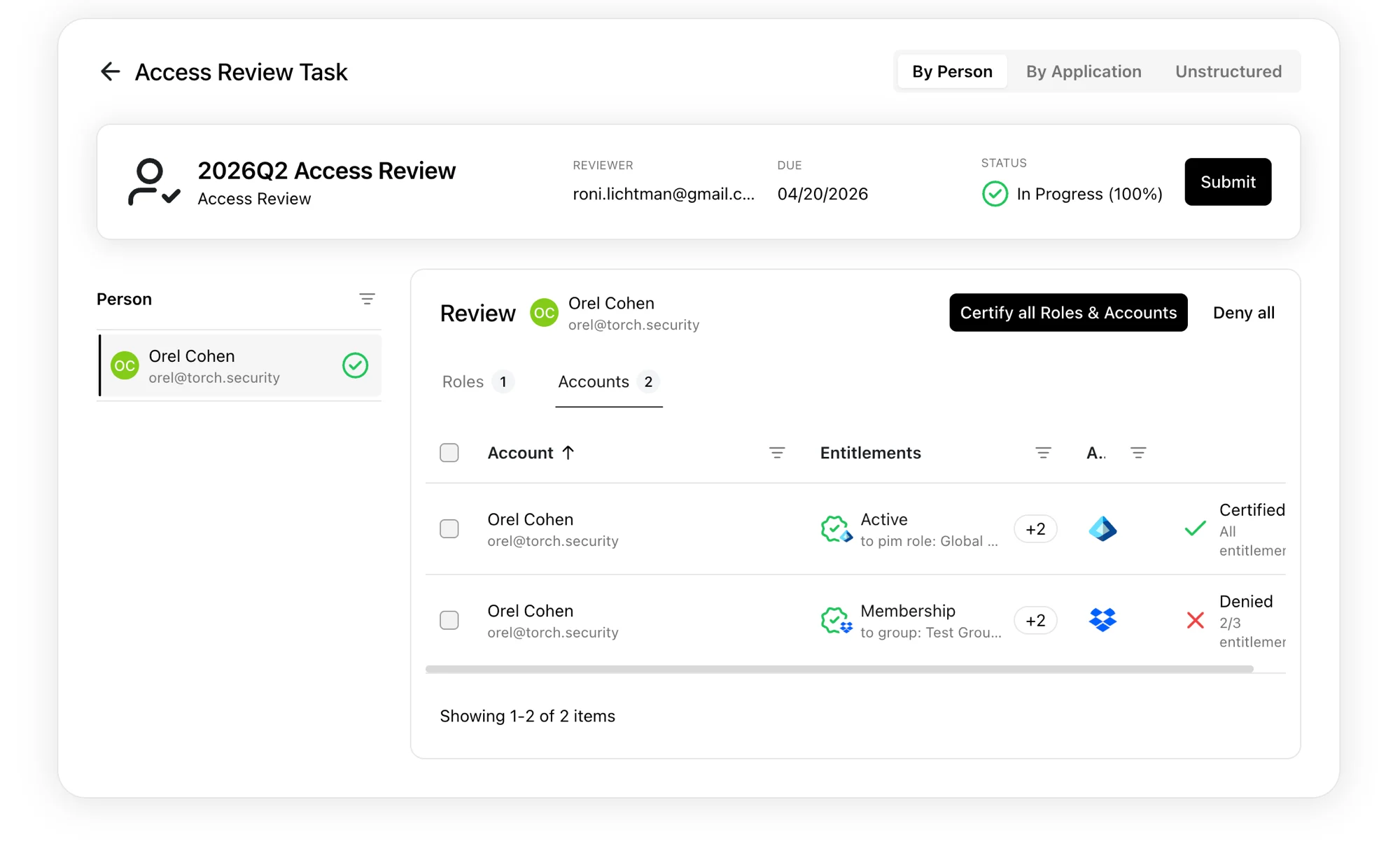
Each access review task contains subtasks. Open a task to see a list of people, and select a person to review their:
  • Roles — the roles assigned to them
  • Accounts — their accounts and entitlements across applications
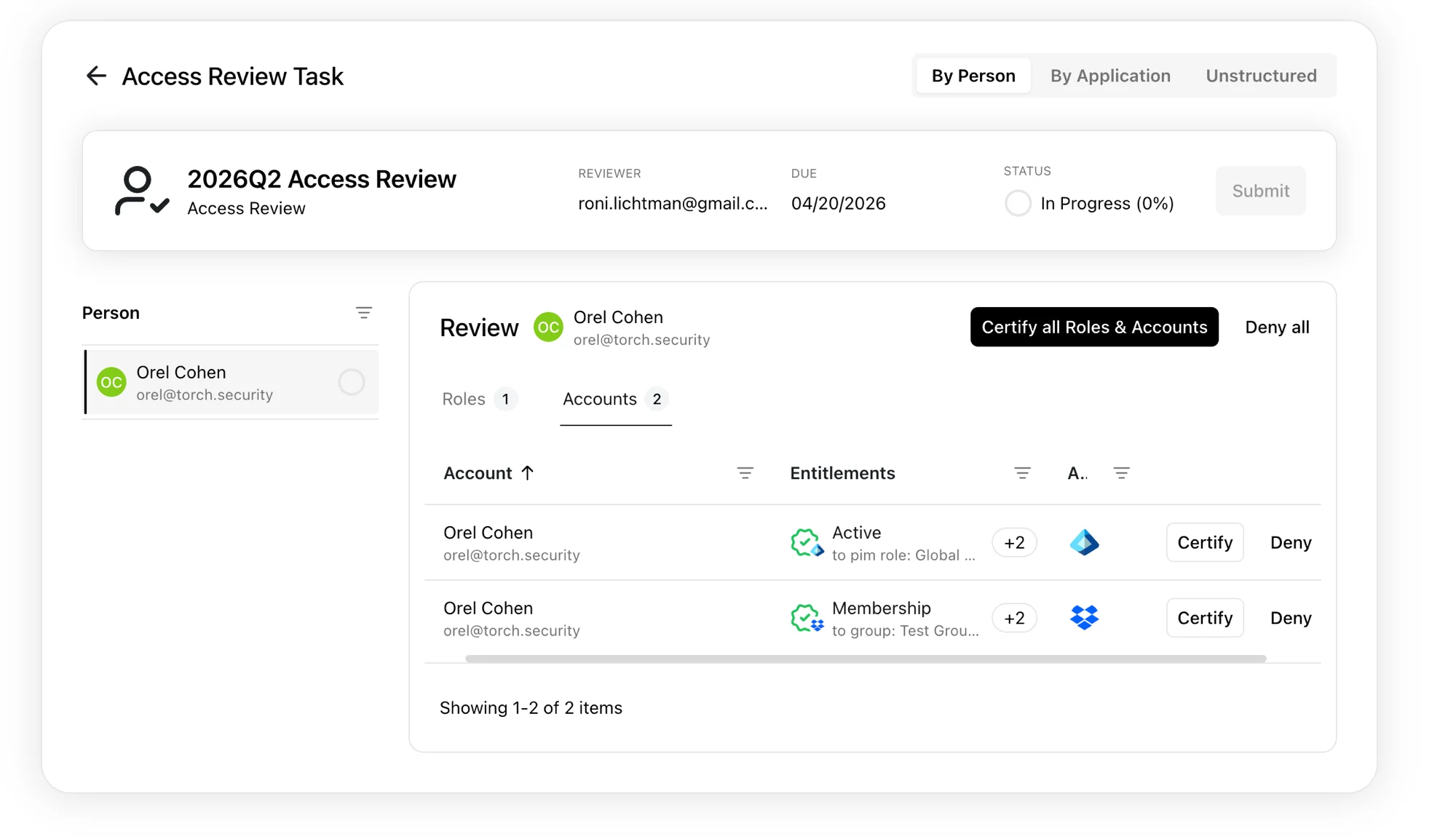
You can switch between By Person, By Application, and Unstructured views at the top of the page.
Access review task details showing subtasks
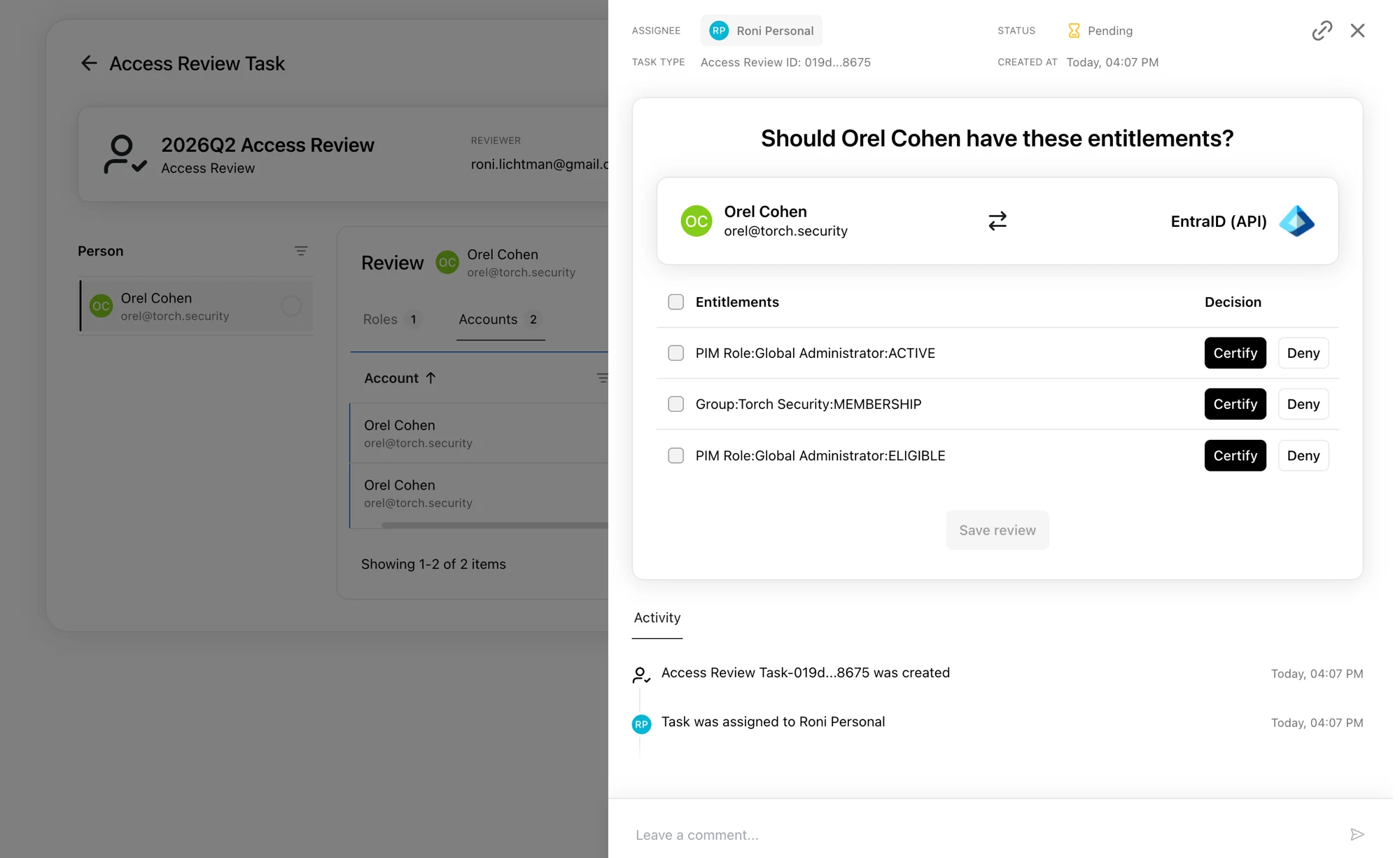
Clicking on a subtask opens a detail view where you can review and take action on individual entitlements for that person.
Subtask detail view showing individual entitlements to certify or deny

Make your decision

For each entitlement, decide whether to Certify or Deny access:
  • Certify — the person keeps their current access
  • Deny — Torch creates a change request to remove the access
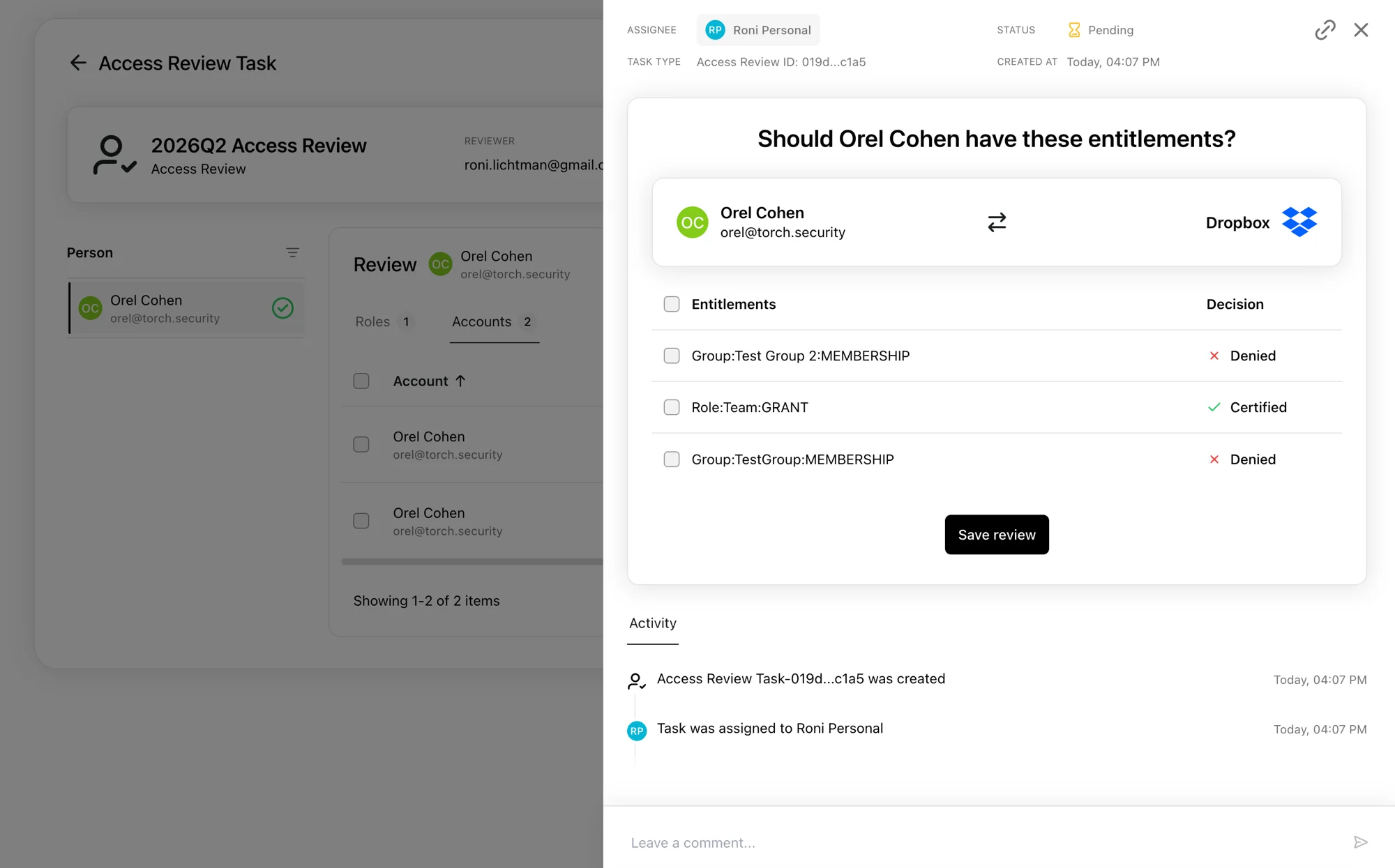
You can also use Certify all Roles & Accounts or Deny all to act on all items for a person at once. After making your decisions, click Save review to save your progress.
Saving review decisions for a subtask
Once all subtasks have been addressed, click Submit to submit the review.
Submitting a completed access review task

Role composition reviews

Role composition reviews work similarly, but instead of reviewing a person’s access, you review the access that a role provides. Each subtask corresponds to an application that the role grants access to. You can switch between By Role, By Application, and Unstructured views.
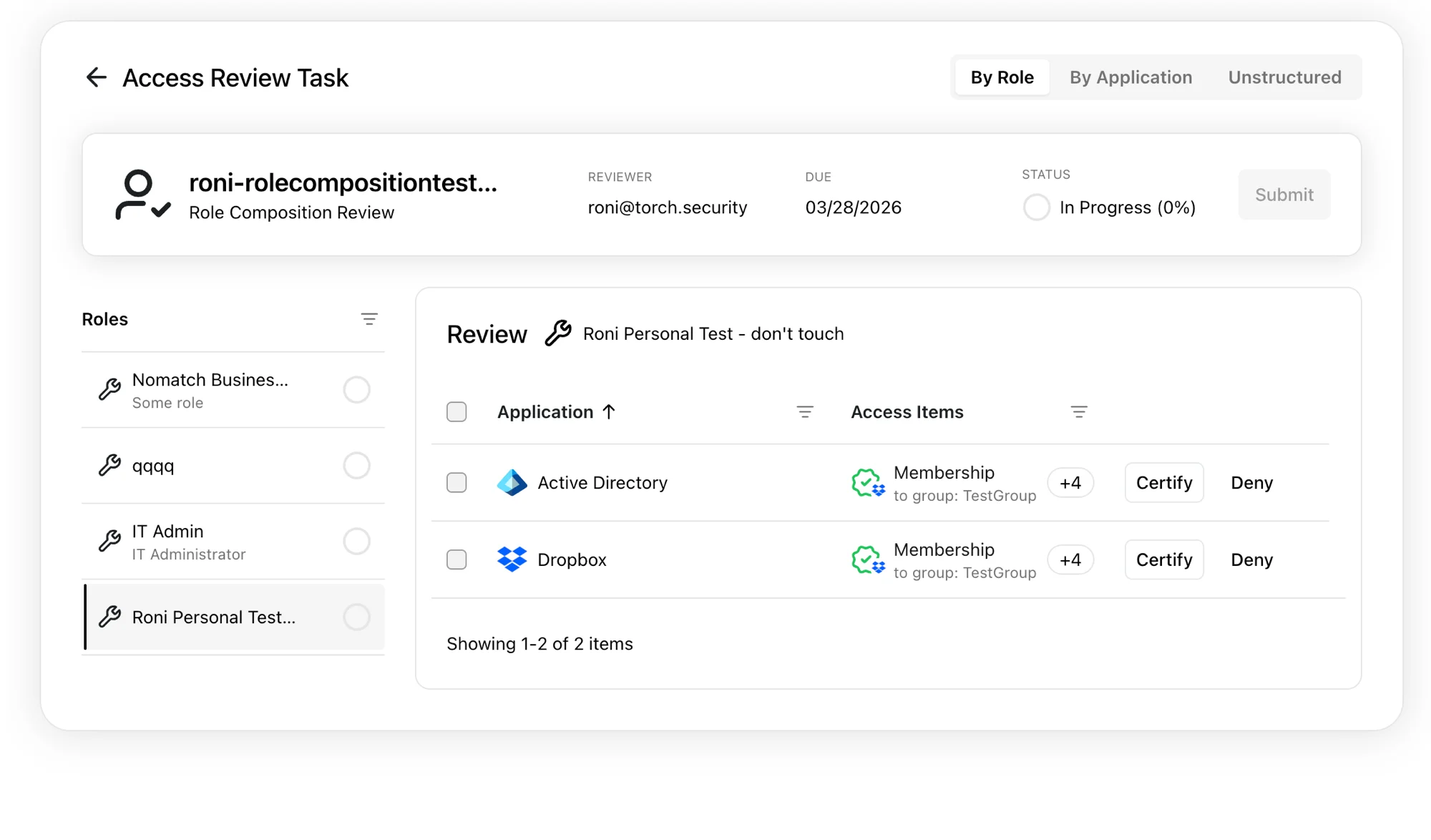
Role composition review task showing applications per role

Complete your reviews on time

You’ll receive weekly reminder emails for any incomplete review tasks. Make sure to complete all your reviews before the campaign due date — any tasks still open when an admin closes the campaign will be cancelled.